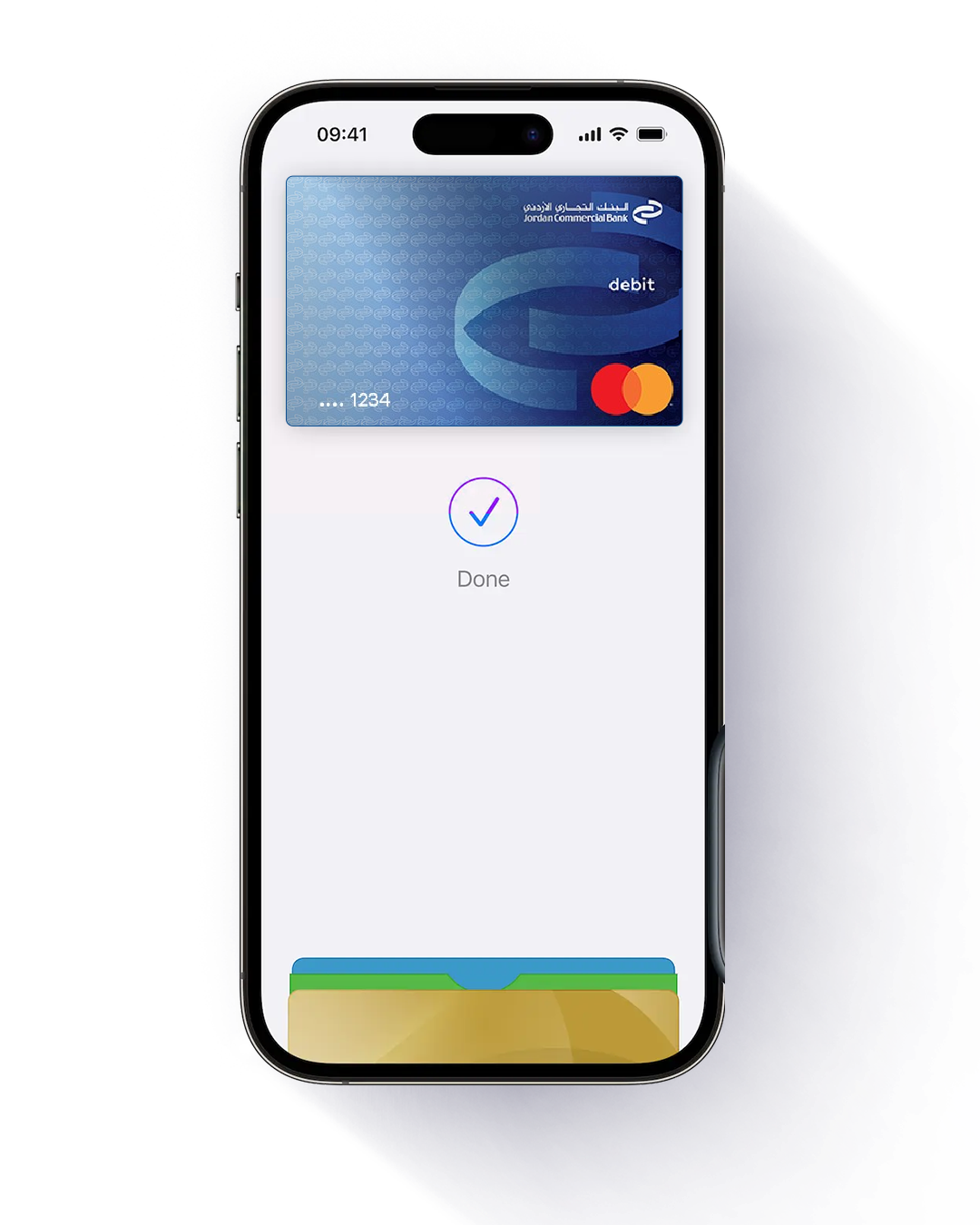
Add your Jordan Commercial Bank Credit, Debit, and Yelo Prepaid Cards to Apple Pay through the Tejari Mobile App and enjoy a faster, safer, and more convenient way to pay using your iPhone, Apple Watch, and iPad. Set your Jordan Commercial Bank card as your default card and experience seamless, secure, and contactless payments - anytime, anywhere.
Key Benefits of Apple Pay
Fast & Convenient Payments
Pay in seconds by simply tapping your device at any contactless terminal.
Enhanced Security & Privacy

Your actual card number is never stored on your device or shared with merchants. Each transaction is authorized using Face ID, Touch ID, or your device passcode.
Accepted Worldwide

Use Apple Pay locally and internationally wherever you see the Apple Pay or contactless payment symbol.
No Extra Charges
Apple Pay is available at no additional cost from Jordan Commercial Bank.
How to Activate Apple Pay
- Log in to the Tejari Mobile App.
- Go to the Cards tab.
- Select the card you want to activate on Apple Pay.
- Tap “Add to Apple Wallet”.
- Select Next.
- Agree to the Terms and Conditions.
- Once verified, your card is ready to use with Apple Pay for secure, contactless payments.
Frequently Asked Questions (FAQs)
Apple Pay is a secure, contactless payment solution that allows you to make purchases using your iPhone, Apple Watch, iPad, or Mac—without needing your physical card. Your Jordan Commercial Bank card details are never shared with merchants.
You can add eligible Jordan Commercial Bank Credit, Debit and Yelo Prepaid Cards through the Tejari Mobile App.
Apple Pay works on:
- iPhone
- Apple Watch
- iPad
- Mac (with Touch ID)
Apple Pay uses Near Field Communication (NFC) to make contactless mobile payments.
Yes. You can add several cards and choose your default card for payments.
All iPhone 6 models and above running iOS 11 are compatible with Apple Pay.
Yes, look for online stores with the Apple Pay logo and select it to complete the payment.
Cancelling a payment made with Apple Pay is the same as cancelling a payment on a physical card. The exact process depends on the store’s policy.
Apple Pay shows the last 10 transactions. To view them:
- Open Apple Pay
- Select the card
- Tap the (i) icon to see the latest transactions
Yes. Apple Pay cards are linked to your iCloud account and can be used across all devices signed in with the same iCloud account.
Apple Pay works anywhere you see the Apple Pay or contactless payment symbol—locally and internationally.
No. Apple Pay works offline for in-store purchases. Internet is only needed during setup or when adding/removing cards.
Yes. Apple Pay uses Face ID/Touch ID, device encryption, tokenization, and a unique device account number. Your actual card number is never stored or shared.
You can lock or remove Apple Pay instantly using Find My iPhone to keep your card secure.
Open Wallet, press and hold your Jordan Commercial Bank card, and drag it to the front.
Open Wallet → Select your card → Tap Remove Card.
Yes. Apple Pay provides instant transaction alerts on supported devices, and SMS notifications will also be sent by Jordan Commercial Bank.
- Make sure your device is updated
- Ensure your card is active
- Confirm your registered phone number is correct
- If issues continue, contact Jordan Commercial Bank Customer Service